
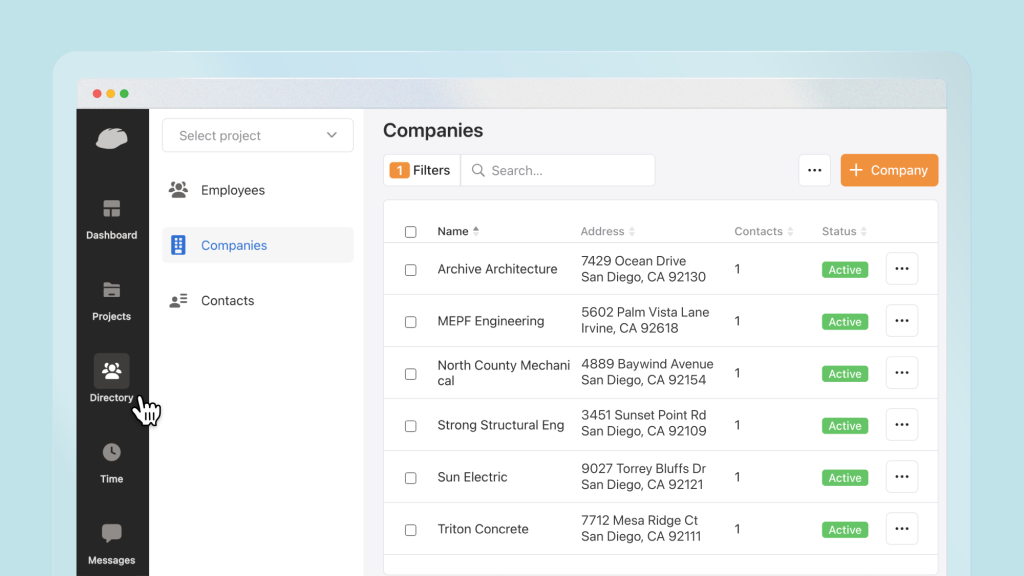
Easily manage employees and contacts with Raken’s company directory. Learn about the different user roles you can assign to ensure everyone has access to the tools and data they need for effective collaboration.
How to access your directory
Log into Raken’s web app and select Directory from the left navigation menu.
Three options will appear in the Directory submenu:
Employees - Members of your company
Companies - Other businesses and third parties you work with
Contacts - People outside of your organization
Adding employees

Employees can be added as either paid users with licenses to access Raken or as workers who will not log into the app themselves, but will need time and activity tracked on their behalf.
Add a new employee to Raken by choosing Employees from the Directory menu and clicking the orange + Employee button in the top right corner of your screen.
Assign roles and add contact information
In the popup window that appears, you’ll assign the employee a role from one of the following options:
Account admin - Admin access to all projects, company settings, and billing information
Project admin - Admin access to edit projects and project settings they are invited to
Project member - Standard access to record time and report on projects they are invited to
Project worker - Limited access to clock in, view schedules, and sign off on time cards
View-only - View only access to reports and activity on projects they’re invited to
Worker - Cannot log into Raken, but other roles may track time and activity on their behalf
Choose the role that best fits that employee, then add details including a name, contact information, employee ID, and classification. When you’re finished, click Save and continue adding more employees as needed.
Import and export employees
Use the button with three dots in the upper right corner to import employee information in bulk or export employee data in a .csv format.
Manage employee details
Once an employee is added to Raken, you can click on the employee’s name to manage the associated details. Use the left menu in the window that appears to edit different data and preferences based on that employee’s role.
Use the orange Save button in the top right corner when you’re finished editing.
Adding companies

By adding companies to Raken, you can associate contacts with a company for better organization.
To do so, select Companies from the Directory menu and click the orange + Company button in the top right corner. Add the company’s address and contact information and click Save when finished.
Once a company is added, you can click on its entry and add projects and contacts that are associated with that company.
Like with employees, you can also bulk import companies.
Adding contacts

In Raken, contacts are people outside your organization that you work with, and who can be given guest access to quickly respond to RFIs without needing to log in to Raken or invited as a collaborator on a project to partner on daily reports.
Use the + Contacts button to add a new contact to Raken individually. You can supply their name, contact information, title, and associated company.
You can also bulk import contacts as well.
New to Raken?
Take a tour of our all-in-one field management app.